
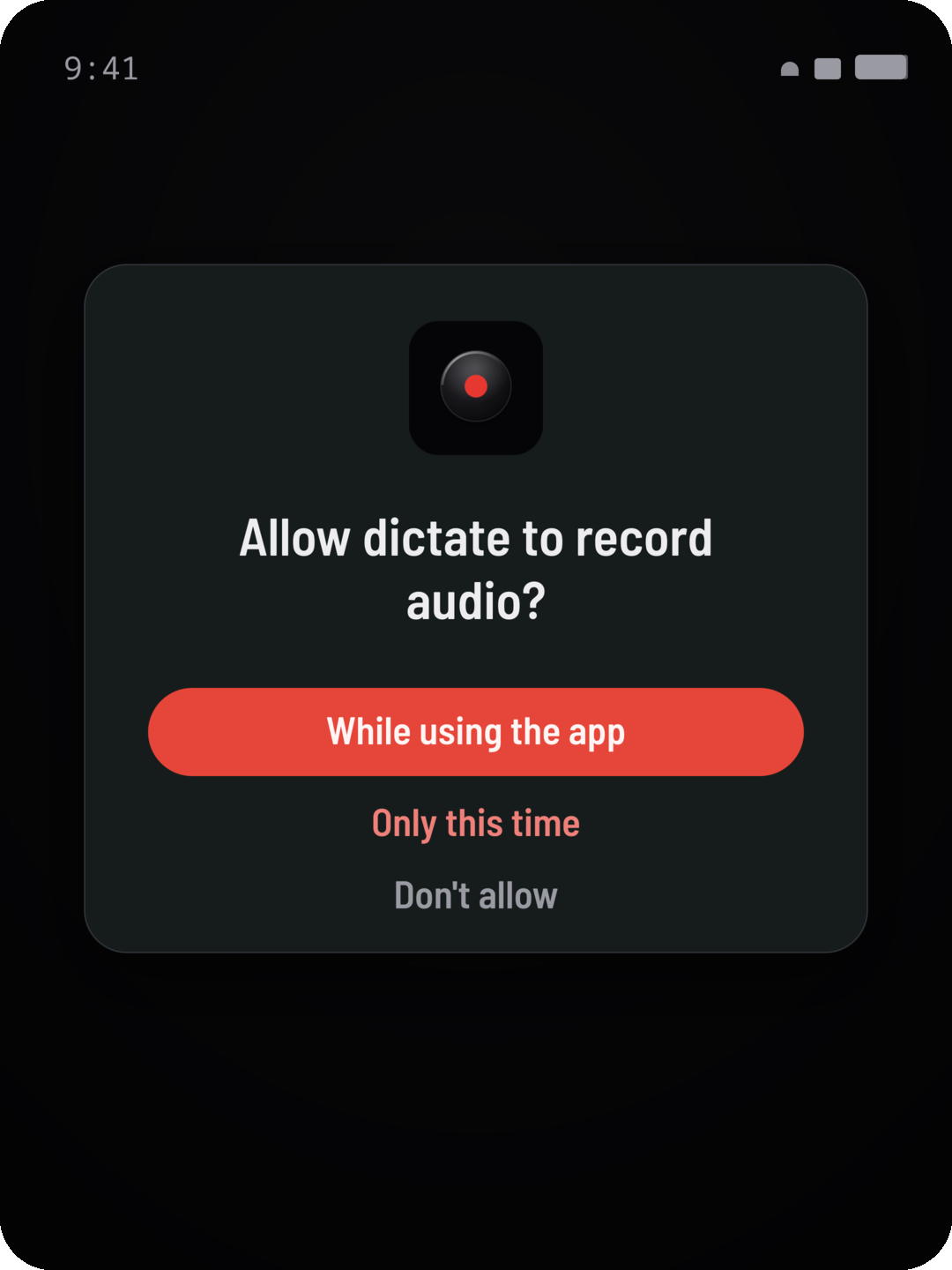
Microphone
Required. dictate records your voice only while you hold the record button; nothing is captured otherwise. Grant it when first prompted, or in Settings → Apps → dictate → Permissions → Microphone.
Get set up
Getting dictate running on Android, granting the permissions it needs, and — if you run client-side — getting your own API keys.
After you install the .apk and open dictate, it asks for a few permissions. Each one is used for one specific thing:
Required. dictate records your voice only while you hold the record button; nothing is captured otherwise. Grant it when first prompted, or in Settings → Apps → dictate → Permissions → Microphone.
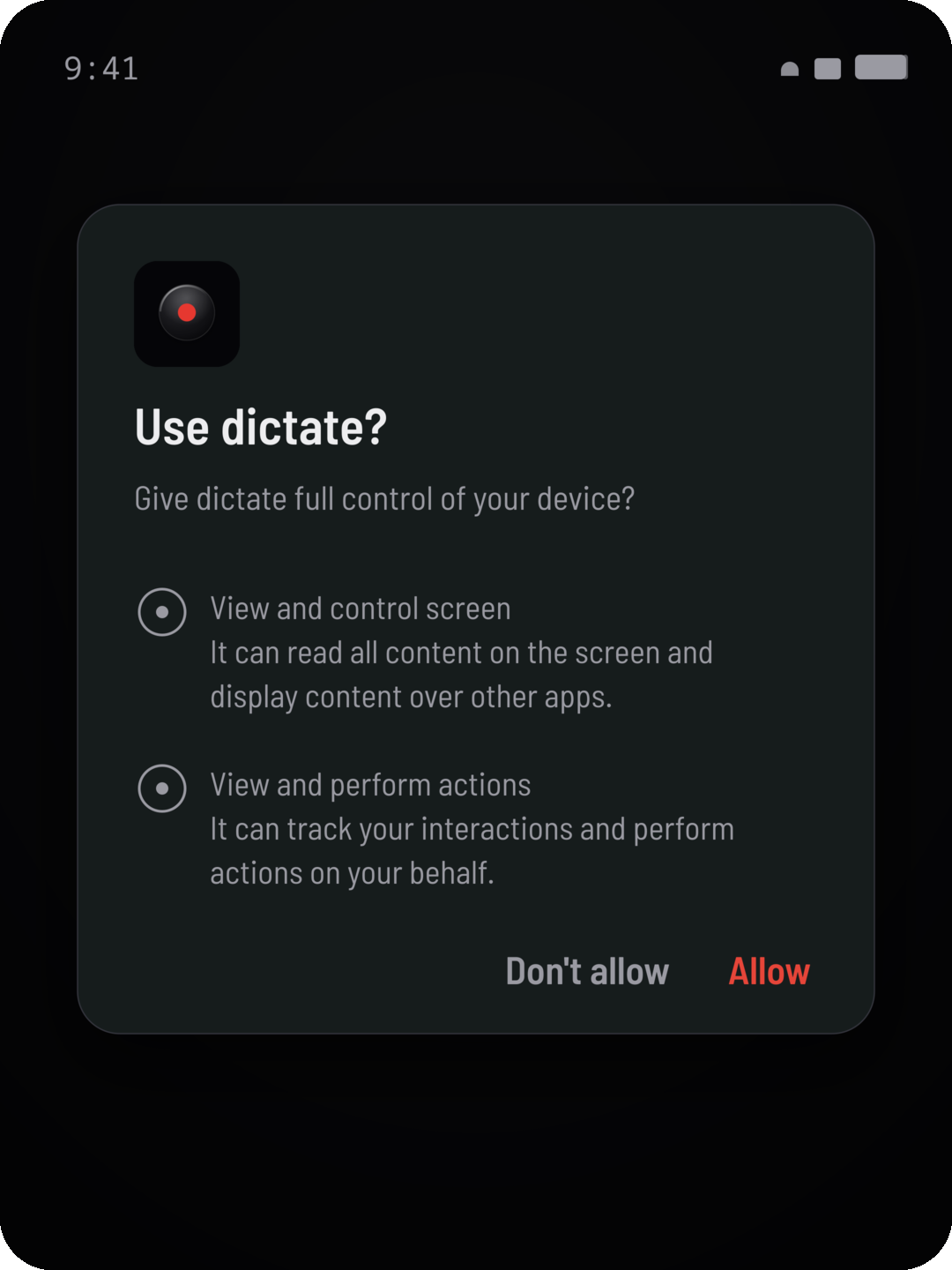
This is how the finished text is typed into whatever app you're in, and how the on-screen terms are read for screen-context biasing. Enable it in Settings → Accessibility → dictate → turn On. Android shows a scary-sounding warning for any accessibility service; dictate uses it only to insert text at your cursor and read visible terms.
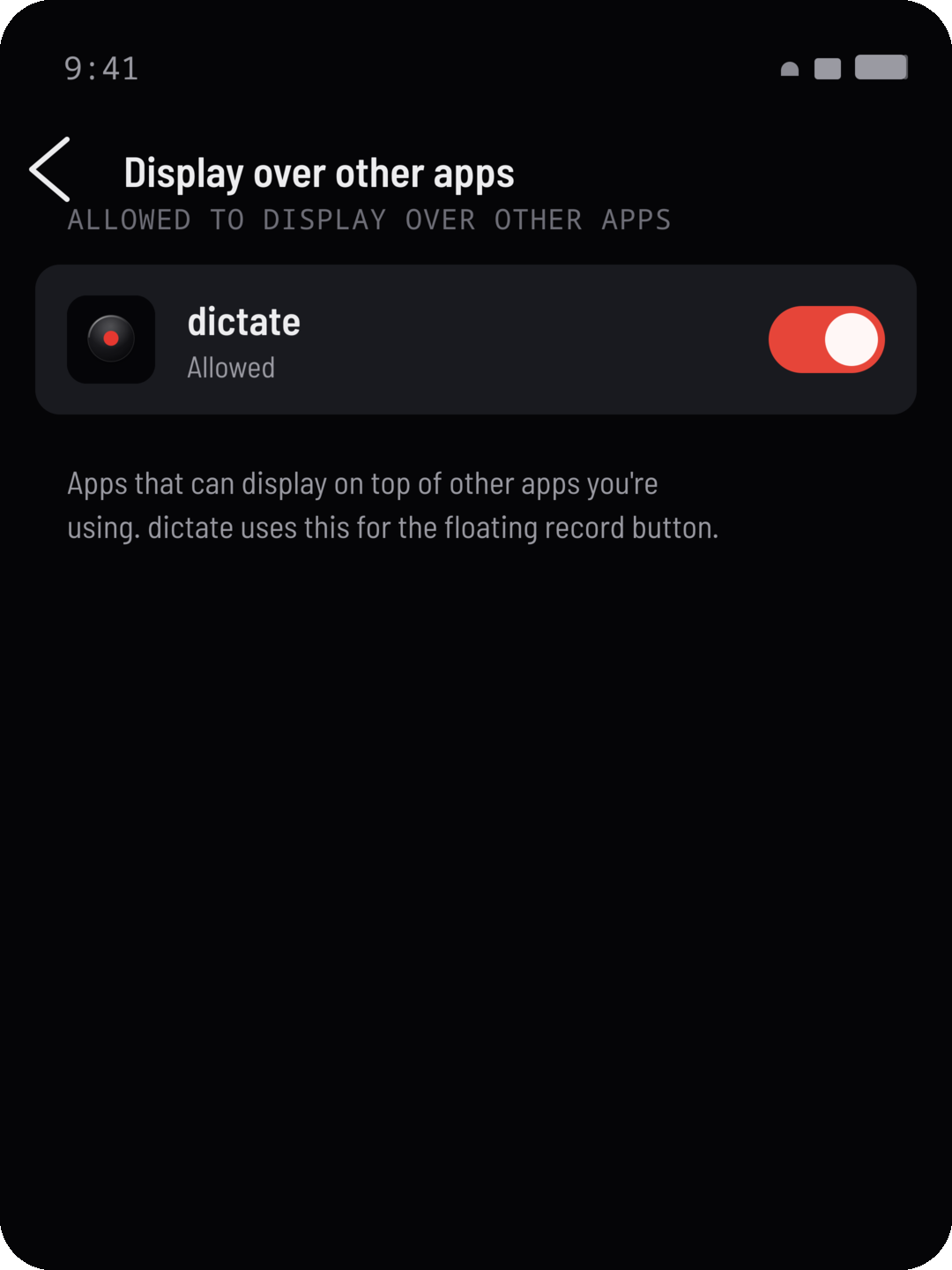
Lets the floating record button sit on top of your other apps so you can dictate anywhere. Enable it in Settings → Apps → dictate → Display over other apps (or “Appear on top”).
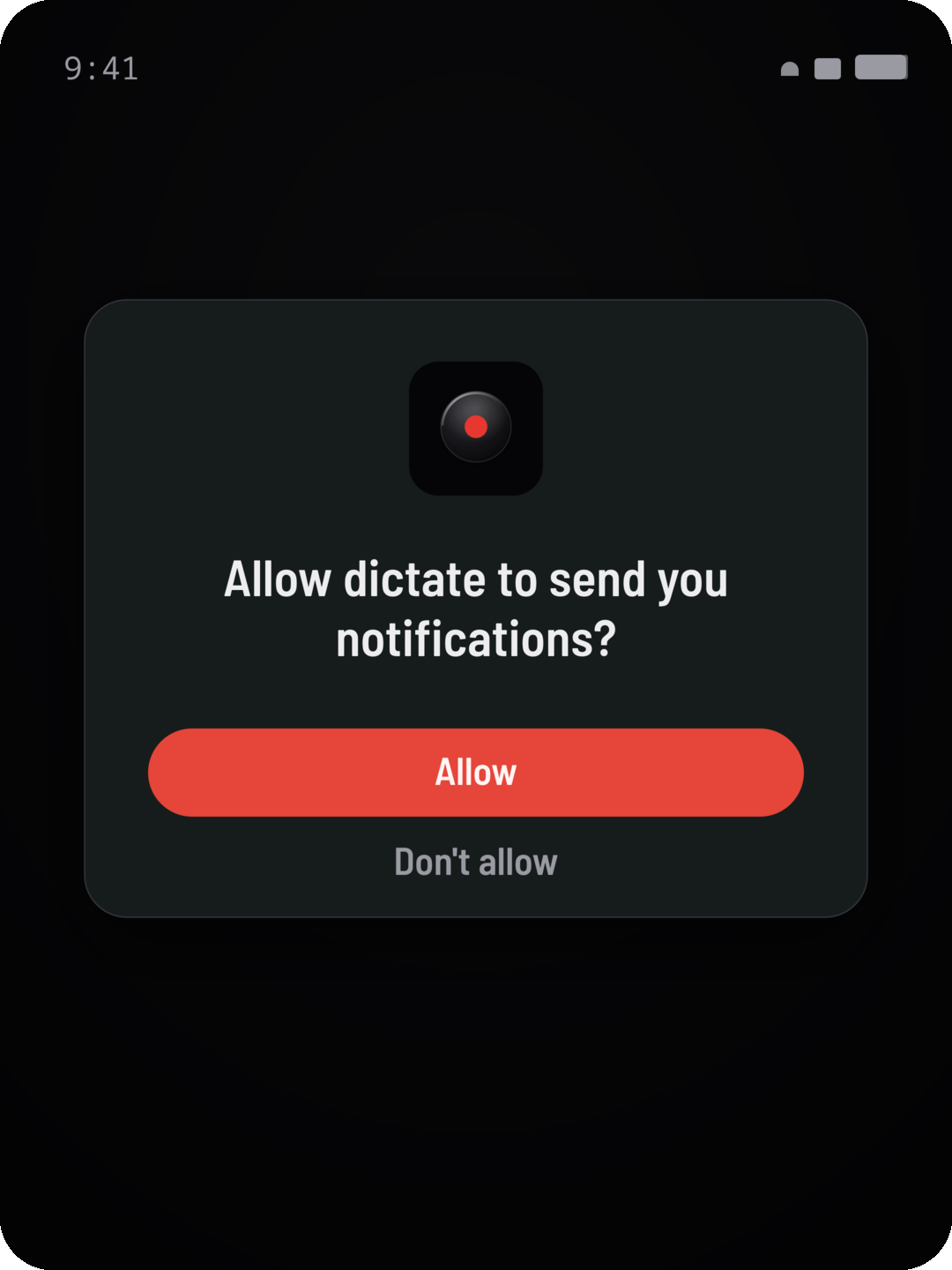
Optional. Used for the ongoing “recording” indicator and to report a failed transcription. Denying it doesn't stop dictation from working.
By default dictate uses the hosted server and you need no keys. In client mode it calls the speech and cleanup providers directly with your own keys — nothing goes through a server. You need two:
Both providers bill you directly for what you use. Keys are stored on your device and sent only to those providers.
← Back to home